How to Remove Metadata from PDF: Complete Guide
By PDFized Team·Published on ·Updated on ·8 min read
Metadata is hidden information embedded in every PDF you create, things like author name, creation date, and the software used, and it can stay in the file even after you've checked every page and removed anything sensitive from the visible content.
If this is the first time you've heard the term, that's OK. We'll break it down in simple terms below, cover the privacy issues it creates, and show you how to remove hidden information from your PDF before you share it.
What Is PDF Metadata?
Metadata is information that always remains ‘behind the scenes’ and is embedded inside a file. Its main aim is to describe the file itself. You don't see it when you open a PDF. But every time you share this or that PDF doc, metadata is attached. In a PDF, metadata can include:
- Author name – the name of the person or organization who created the file
- Creation date and time – when the document was first made
- Modification date – the last time the file was edited
- Software used – the application used to create or edit the PDF (e.g., Microsoft Word 2021, Adobe Acrobat)
- Computer name – in some cases, the hostname of the machine used to create the file
- Company name - often pulled from software registration details
- Keywords and subject – tags added during creation
- GPS coordinates are not common in this kind of file, but you can still encounter them if you created the doc using a mobile gadget
When it comes to PDF files, one can find metadata in the Document Information Dictionary (a legacy format) and XMP (Extensible Metadata Platform). Both can be present simultaneously in the same file. If you remove one without addressing the other, it’ll leave metadata behind.
Why Removing PDF Metadata Matters
Metadata exposure is a real and documented security risk.
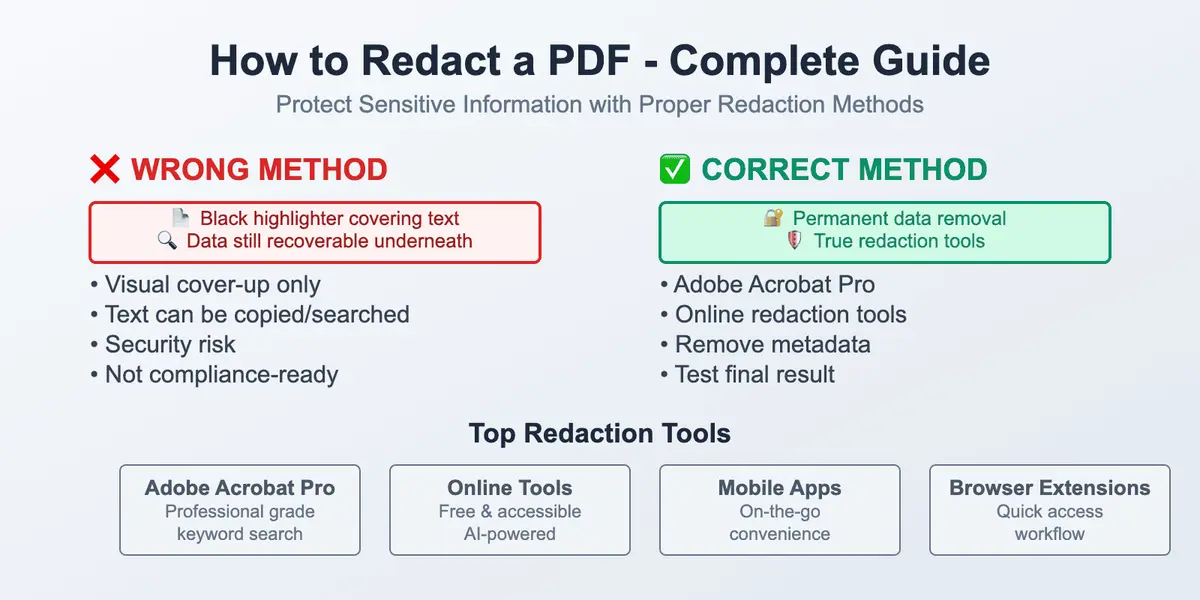
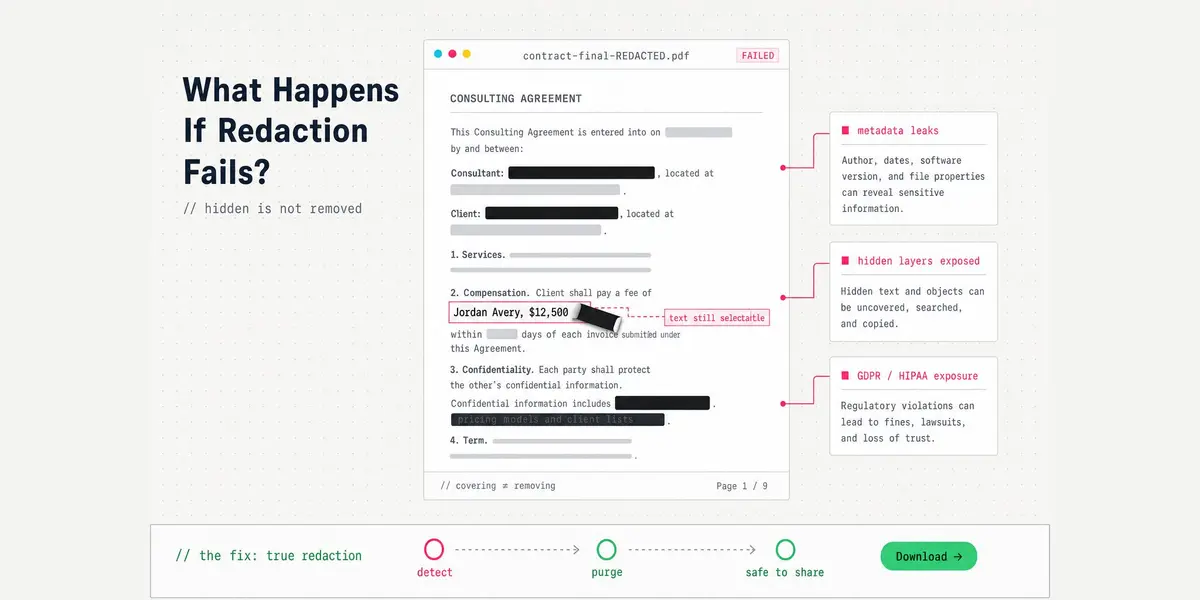
Speaking of risks, the 2005 case involving the death of Nicola Calipari, an Italian intelligence officer shot at a US military checkpoint in Baghdad, is one of the most cited examples. The US military's investigation report was released as a PDF, but the sensitive sections weren't actually redacted, they were just covered with black boxes drawn over the text. Anyone who copied and pasted those blacked-out sections could still read the names of soldiers and other details that were supposed to stay hidden.
A similar case occurred in 2003, when the UK government published a report about Iraq as a Word document. The file still carried hidden metadata, including a revision log with the names of people who worked on the report. Once those details became public, it caused significant political controversy and embarrassment.
Unfortunately, these cases are not rare. Whenever you share this or that PDF without stripping its metadata, you share (at the same time) the following issues:
- The names of authors who worked on a document
- Each of the edits that were made and their exact number
- Software versions that can indicate system vulnerabilities
- Timestamps that reveal when confidential work took place
- Organizational details that were never meant to be public
For lawyers sharing legal briefs, HR teams sending contracts, healthcare professionals handling patient records, or anyone sharing documents externally – metadata is a genuine data privacy compliance risk.
The exposure hits differently depending on the field. For lawyers, metadata can reveal negotiation strategy and revision history. For healthcare teams, it can expose patient identifiers embedded in file properties. For finance, it can leak deal terms and valuation assumptions that were never meant to leave the room.
Cleaning up a PDF?
PDFized strips hidden metadata and redacts sensitive text in one pass – free.
What Metadata Does NOT Mean
Before going on, we need to tell you this: metadata is different from redaction.
Redaction means permanently removing visible sensitive content from a document (names, numbers, addresses, images) – so that the text itself is gone and cannot be recovered. Metadata removal addresses the hidden layer of file information that exists separately from the visible content.
A properly redacted PDF may still contain metadata. A PDF with metadata removed may still contain visible sensitive information in its body. For complete document security, you need both.
How to Remove Metadata from PDF: 4 Methods
Method 1: Adobe Acrobat Pro
Adobe Acrobat Pro lets you clear metadata fields by hand in Document Properties and has a more thorough option called the Sanitize Document feature.
Steps:
- Open your PDF in Adobe Acrobat Pro.
- Go to File → Properties and click the Description tab. You can manually clear the Author, Subject, Keywords, and other visible fields here, but this only addresses the Document Information Dictionary – not XMP metadata.
- For a thorough clean, go to Tools → Redact → Sanitize Document. This removes both metadata types, hidden layers, embedded content, scripts, and other non-visible data in a single step.
- Alternatively, use Tools → Redact → Remove Hidden Information to selectively review and remove metadata, comments, attachments, and hidden layers before deciding what to strip.
- Save as a new file. The Sanitize Document option is the most reliable method in Acrobat because it addresses both legacy and XMP metadata simultaneously. It also removes JavaScript and hidden layers, which can carry additional data.
Cost
Adobe Acrobat Pro subscription required (paid).
Method 2: ExifTool (Free, Command Line)
ExifTool is a free tool that many security professionals and developers use to read, write, and remove metadata from files, including PDFs. It is the most thorough free option available.
Steps:
- Download ExifTool from exiftool.org – available for Windows, macOS, and Linux.
- Open your terminal or command prompt.
- To view all metadata in a PDF, run: exiftool yourfile.pdf
- To remove all metadata, run: exiftool -all= yourfile.pdf
- ExifTool creates a backup of the original file automatically (saved as yourfile.pdf_original). Delete it once you've confirmed the cleaned version is correct.
- ExifTool's changes to a PDF are reversible, so the old metadata is still inside the file. To remove it permanently, run: qpdf --linearize yourfile.pdf clean.pdf and share clean.pdf.
ExifTool removes XMP, EXIF, and Document Information Dictionary metadata from PDFs. It does not remove hidden layers, form fields, or embedded scripts – for those, Acrobat's Sanitize function is needed.
Cost:
Free.
Method 3: PDF Printing (Print to PDF)
Printing a PDF to a new PDF file is a quick method that strips most basic metadata because the output is essentially a fresh rendering of the document's visual content.
On Windows:
- Open the PDF in any PDF viewer.
- Press Ctrl+P to print.
- Select Microsoft Print to PDF as the printer.
- Click Print and save the new file.
On macOS:
- Open the PDF in Preview.
- Go to File → Print.
- Click the PDF dropdown in the lower left and select Save as PDF.
- Save the new file.
Important limitation: This method removes most Document Information metadata but does not reliably remove XMP metadata embedded deeper in the file structure. It also flattens the document and removes all interactive elements, form fields, and layers. This may or may not be desirable depending on your use case. When completeness matters more than convenience, use Acrobat or ExifTool instead.
Cost:
Free.
Method 4: Online PDF Metadata Removal Tools
There are many helpful tools out there. You can have the whole pool of ‘em when you need to upload a PDF, get rid of its metadata, and download a clean version. The best part is that you have to install zero software. Don’t use them nonstop (only from time to time) and use them with non-sensitive documents. However, before you upload any doc that has confidential information to a third-party online tool, some things should be verified:
- Whether the service processes files on the server or client-side
- How long files are retained after processing
- If a privacy policy and deletion guarantee actually exist
That goes for general-purpose chatbots too – uploading a confidential file to ChatGPT hands it to a third party and leaves the metadata untouched. It is better to use a locally-run solution like ExifTool or Adobe Acrobat if you work on docs with sensitive data. Such a step is much safer than uploading to an unknown server. If you happen to already be using PDFized for AI-powered redaction, you should remember that trusted redaction tools also address metadata as part of the removal process. It means that redacting and cleaning metadata are not separate steps. They happen in tandem.
Cost:
Varies by platform (free to paid).
Comparison: Which Method Is Right for You?
| Method | Removes XMP Metadata | Removes Doc Info | Removes Hidden Layers | Installation Required | Cost |
|---|---|---|---|---|---|
| Adobe Acrobat Pro (Sanitize) | ✅ | ✅ | ✅ | Yes | Paid |
| ExifTool | ✅ | ✅ | ❌ | Yes | Free |
| Print to PDF | Partial | ✅ | ✅ | No | Free |
| Online tools | Varies | Varies | Varies | No | Free / Paid |
How to Verify Metadata Has Been Removed
After removing metadata, always verify the result before sharing the file.
- Using Adobe Acrobat. Go to File → Properties → Description and check that the Author, Subject, and Keywords fields are blank. Then go to Tools → Redact → Remove Hidden Information to confirm no additional metadata remains.
- Using ExifTool. Run exiftool yourfile.pdf again after cleaning. The output should show minimal or no metadata fields.
- Using a free online checker. Use any free online PDF metadata viewer to inspect the output – search for “PDF metadata checker” and pick one that lets you view without uploading to a processing server. Always use a viewer-only tool to check (not an editor). It'll help avoid adding new metadata during the verification.
Metadata and Redaction: A Combined Approach
Both processes (stripping metadata and redacting visible content) are separate actions that together create a fully secured document. If you only remove metadata, the user who will receive your doc can still read sensitive names, numbers, or details in the body of the doc. If you only redact visible content, the document may still carry author names, editing history, or software details in its hidden layer. For documents heading outside your organization (legal filings, medical records, financial reports, client contracts) – both steps are necessary. Redact the visible sensitive content first, then strip the metadata before sharing.
One final caution: if you edit the PDF after stripping metadata, the editing software writes new metadata into the file. Always remove metadata as the very last step before sharing.
Conclusion
Metadata is invisible, and it means that the chance of you overlooking it is very high. Plus, it has a very revealing nature. Almost every PDF you make has a record of the author, together with details like when it was made and the software that was used in the process. That information travels silently every time you share the file. But removing it is straightforward if you know what you're dealing with. For most people, the Print to PDF method handles basic cleanup quickly. For anything sensitive or professional, use ExifTool or Adobe Acrobat Pro. Both give you reliable results. And remember: metadata removal is only half the job. Pair it with proper redaction of the document's visible content, and you've covered both layers of risk.
// faq
FAQ
Not reliably. Simply saving or "Save As" in most applications preserves existing metadata and may even add new fields. Use a dedicated metadata removal method (Adobe Acrobat's Sanitize Document, ExifTool, or Print to PDF) to ensure the metadata is actually stripped.
No. Compressing or archiving a PDF has no effect on its internal metadata. The metadata travels inside the file itself, not at the container level.
Yes. Scanned PDFs still contain file-level metadata such as creation date, software, and author fields, even though the content is an image rather than searchable text. ExifTool and Adobe Acrobat both handle scanned PDFs correctly.
No. Hidden text refers to text that exists in the document layer but is not visible – for example, text covered by a black rectangle. Metadata is structured information about the file stored separately from the document content. Both are potential security risks, but they require different approaches to remove.
It depends on the tool. Basic redaction tools that only address visible content may leave metadata intact. Professional tools, including Adobe Acrobat's Sanitize function and PDFized, address metadata as part of the redaction process. Always verify metadata has been removed after redaction rather than assuming it was.