Adobe Redaction Tool Not Working? The Whys and the Fixes
By PDFized Team·Published on ·8 min read
If Adobe redaction tool gives zero good results, it’s because:
- Your Acrobat plan doesn’t include Redact at all (it's Pro-only, not in Reader, Standard, mobile, or the browser version).
- The file is secured or digitally signed.
- You marked content but you failed to click Apply.
- The doc is a scan that needs OCR before Acrobat can read it.
- Acrobat itself is freezing on a heavy file.
Common Adobe Redaction Problems at a Glance
Find your symptom below, apply the fix, and know in advance that even a successful redaction leaves hidden metadata behind unless you also run Sanitize.
Before you fix anything, here’s something to take into account: a greyed-out button or a frozen Apply step is annoying. But what is worse is that it fails. A file that looks redacted and isn't will do far more damage than one that refuses to cooperate.
| Symptom | Most likely cause | Fix |
|---|---|---|
| Redact tool missing entirely | Reader, Standard, mobile, or browser version | Redaction needs Acrobat Pro on desktop |
| Redact greyed out on one file | Security restrictions or a digital signature | Unlock the file or get an unsecured, unsigned copy |
| Black boxes drawn, text still copyable | Marks were never applied | Click Apply and check for the “_Redacted” file |
| Acrobat hangs when applying | Large or complex file, version bug | Update, apply in chunks, or print as image first |
| Can’t select or find text in a scan | No OCR layer yet | Run Recognize Text, then redact |
| "Bad parameter" error on save | Structural problem in the file | Print to a new PDF and redact that copy |
First, Check You Actually Have Adobe’s Redact Tool
This one catches more people than any bug. Redaction is an Acrobat Pro feature – full stop. If you're on the free Reader, on Acrobat Standard, or trying to redact in the mobile app or the browser version, the tool isn't hidden or broken. It simply isn't there.
So if you’ve been searching for how to redact in Adobe Acrobat Standard: you can’t. Adobe’s own plan comparison puts Redact (along with OCR) on the Pro-only list, and that's the main reason legal and HR teams end up paying for Pro.
In Acrobat Pro on desktop, the tool lives under All tools → Redact a PDF. You can also select text, right-click, and choose Redact straight from the context menu.
If you have a Pro license and the tool is still missing or greyed out on every file – including fresh, unsecured ones – you’re likely looking at a licensing or provisioning glitch, not a document problem. Sign out of Acrobat, sign back in, update to the latest version, and if that changes nothing, it’s a ticket for your IT team or Adobe support, not something a document fix will solve.
Not in a hurry to fix Adobe? Try the alternative.
PDFized does automatic PDF redaction in your browser – free, no install, no Pro license needed.
Why Is Redact Greyed Out in Adobe?
If the tool exists but won't let you use it on a particular file, the file itself is almost always the reason. Two usual suspects:
1. The document is secured
Press Ctrl+D (Cmd+D on Mac) to open Document Properties and check the Security tab. If the security method says anything other than “No Security”, the author has restricted editing – and redaction counts as editing. The clean fix: enter the owner password and remove the restriction, or ask whoever created the file for an unsecured copy. If they won't hand one over, ask them to apply the redactions on their side.
2. The document is digitally signed
A digital signature certifies that a file hasn’t changed, and redaction changes it – so Acrobat blocks the combination by design. Ask the signer for an unsigned version, or agree that redaction happens before signing next time. Printing the file to a new PDF flattens it and makes redaction possible again, but it also destroys the signature’s validity – so check that's acceptable for your use case before you do it.
Either way, the greyed-out button is Acrobat following the file's rules, not a malfunction. The fix is getting a version of the file without those locks.
You Marked Everything – and Nothing Was Removed
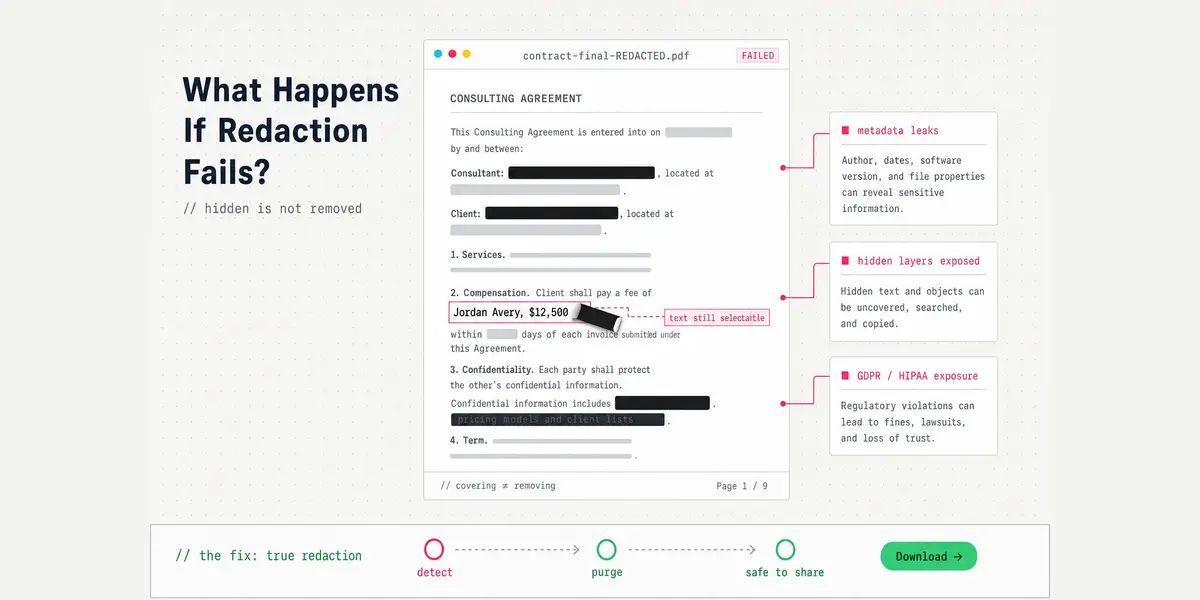
This is the most dangerous way Adobe redact “doesn’t work”, because it looks like it did. Drawing redaction marks does nothing to the file. The marks are just annotations – the text and images under them are fully intact, selectable, and copyable until you click Apply in the left pane and save.
People skip that step more often than you’d think: they mark twenty passages, see the black outlines, save, and send. The recipient clicks on a black box, hits copy, and reads everything. That’s not a hypothetical – it’s how a steady stream of real-world failed redactions happens, and the fallout gets expensive fast.
When you click Apply, Acrobat removes the marked content permanently and saves the result as a new file with “_Redacted” added to the name – that suffix is your confirmation the removal actually ran. No suffix, no redaction.
If Apply itself is greyed out, go back one section: security settings and signatures block the apply step the same way they block the tool. And if you want the full correct sequence from marking to verification, our guide on how to redact a PDF walks through it step by step.
Why Does Adobe Acrobat Freeze When Applying Redactions?
The other classic: marks go on fine, you hit Apply, and Acrobat hangs – spinning cursor, sometimes for hours, sometimes until you kill it from Task Manager. It shows up most on large or complex documents, and users have reported waves of it after certain Acrobat updates.
Work through these in order:
- Update Acrobat (Help → Check for updates), then restart and try again. Several freezing episodes were simply bugs that later patches fixed.
- Apply in smaller chunks. On a long document, redact and apply a range of pages at a time instead of the whole file in one pass.
- Print the PDF to a new PDF with “Print as image” enabled, then redact the fresh copy. This strips whatever structure was choking the apply step – at the cost of turning text pages into images, so you’ll need OCR afterwards if searchability matters.
- Repair the install (Help → Repair installation) or reset preferences by renaming the Acrobat preferences folder, if the problem hits every file.
Other Reasons Adobe Redact Is Not Working
It won’t redact a scanned PDF
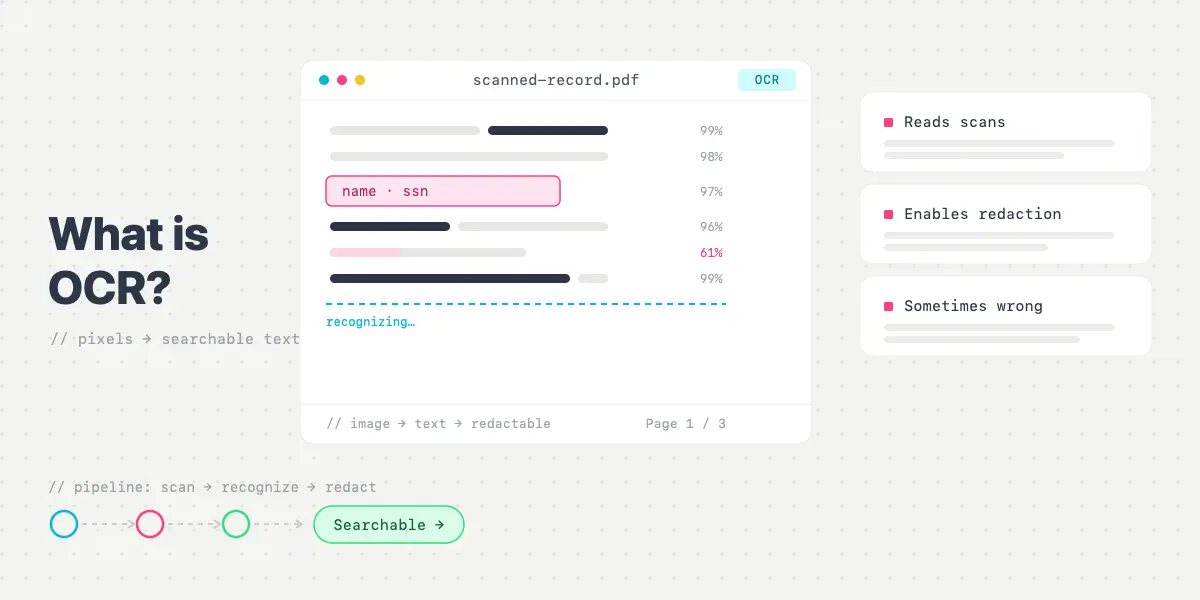
A scan is a picture of text, not text. Until Acrobat runs OCR, Find Text & Redact finds nothing, and double-clicking a word selects nothing – there’s no text layer to work with. The order matters:
- All tools → Scan & OCR → Recognize text → In this file
- Check the result — OCR misreads happen, especially on poor scans
- Then mark and apply your redactions as usual
And never settle for drawing a box over the image without applying it: that’s blacking out text, not redacting it.
"Document could not be saved. Bad parameter."
This error means something in the file’s internal structure is broken. You can usually route around it:
- Print the file to Microsoft Print to PDF (or “Save as Adobe PDF”) and redact the new copy
- Flatten it via Print Production → Flattener Preview – this disables interactive elements, so use it on a copy
- As a last resort, combine the broken file into a fresh PDF and delete the extra pages
Black redaction boxes appear on every page
Usually this isn’t a bug at all – the Repeat mark across pages option was switched on, which is designed to redact headers and footers in one move. Delete the marks and redo them without it. If marks keep multiplying with the option off, reset Acrobat's preferences by renaming the preferences folder and restarting.
Text in form fields won’t redact
Content sitting in active form fields is stored separately from the page text, and the redaction tool doesn’t always catch it. Flatten the form first (Print Production → Flattener Preview, or print to a new PDF), then redact the flattened copy.
Before You Send the "Fixed" File
Run Sanitize – or hidden data survives
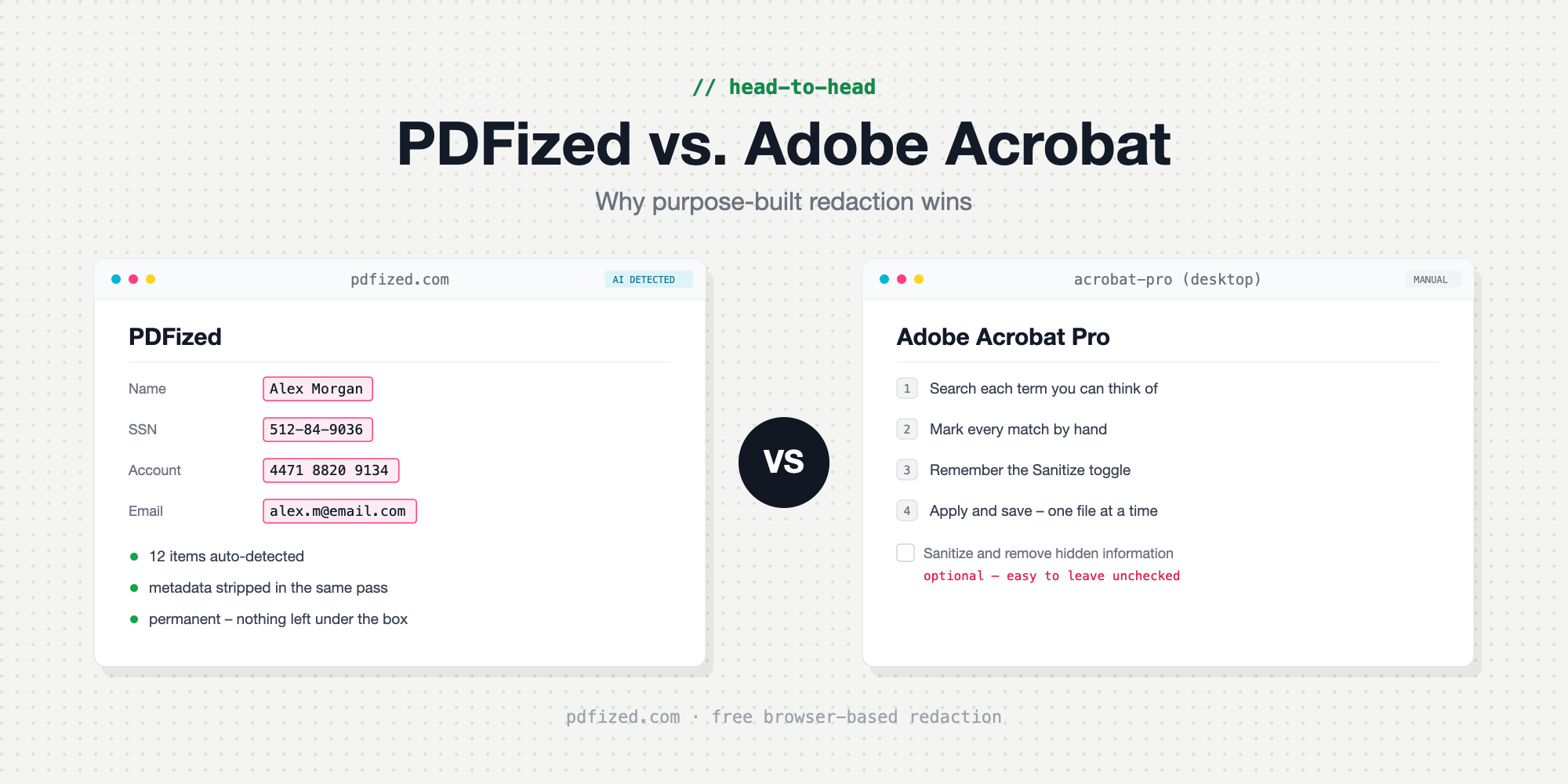
Apply removes exactly what you marked – and nothing else. The author name, edit history, comments, hidden layers, and other metadata all stay in the file unless you also tick the Sanitize option in the apply dialog (or run Remove Hidden Information separately). It’s an optional checkbox, which is exactly why so many “properly redacted” files still leak. Here’s how to remove metadata from a PDF and what's hiding in there.
PDFized: The Alternative That Solves All of the Above
Look at the workarounds above honestly: half of them involve printing the file to a new PDF, breaking signatures, re-running OCR, or resetting the application. That’s a lot of ceremony for one redacted document.
If you just need the sensitive data gone, a free PDF redaction tool that runs in the browser skips the whole fight: PDFized’s AI finds names, numbers, and other sensitive data for you, OCR is built into the flow, and hidden metadata is stripped in the same pass – no Pro license, no install, nothing to repair. If you’re weighing the two properly, here's our full PDFized vs. Adobe Acrobat comparison.
// faq
FAQ
In most cases the file is secured or digitally signed – check Document Properties → Security. If the Redact tool is missing altogether, you're not in Acrobat Pro on desktop, which is the only version that has it.
Large, complex files and version-specific bugs are the usual causes. Update Acrobat, apply redactions in smaller page ranges, or print the file as an image to a new PDF and redact that copy.
In Acrobat Pro on desktop: All tools → Redact a PDF. You can also select text and choose Redact from the right-click menu. It’s not in the free Reader, the mobile app, or the browser version.
No. Redaction is exclusive to Acrobat Pro. If you only need redaction – not the whole suite – a dedicated tool is usually the cheaper and faster route.