Redacted Email: Meaning, Example, Redaction
By PDFized TeamPublished on 8 min read
A redacted email is a copy of an email that has zero sensitive details (account numbers, personal data, and other people’s names).
To redact an email, save it as a PDF and remove the sensitive content from that copy permanently. Redaction options are absent in Gmail and Outlook. That's why the job always happens outside the email client. The original stays untouched in your mailbox. Only the copy you hand over changes.
What Is Redacting an Email?
A redacted email. Simply put, it is a redacted document, where some specific pieces of information are permanently removed. Usually, people remove this info from copies of docs to share copies, not original pieces. Even though some info is gone, the structure stays readable. And it is even bigger in email. There’s the visible body, but you can see the header block (From, To, CC, date, subject), the signature with phone numbers, attachments, etc.
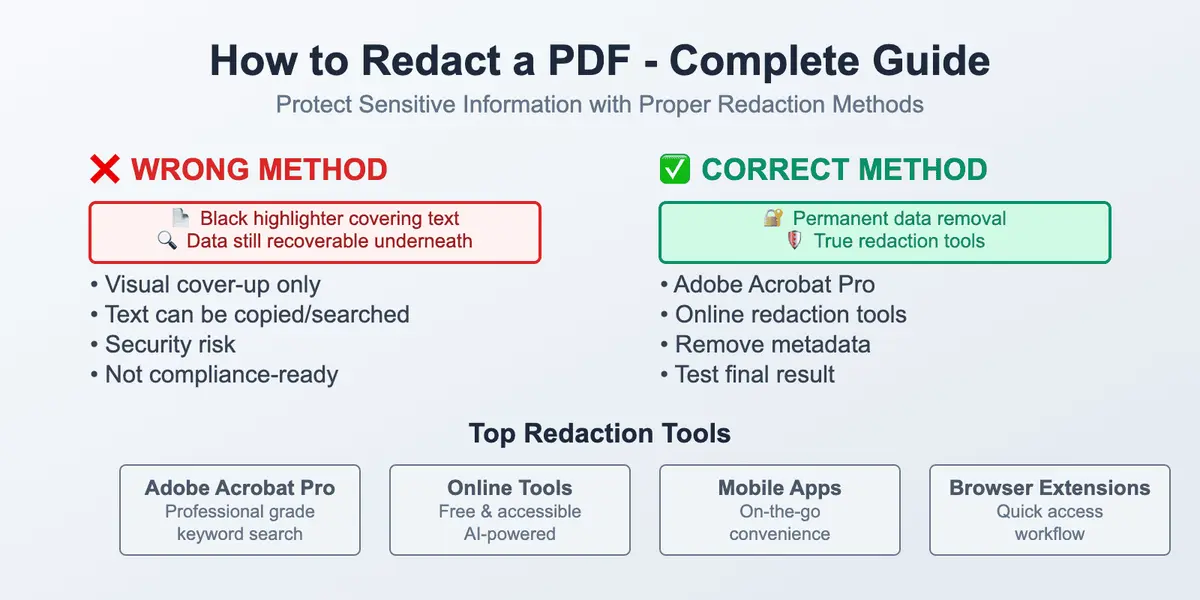
You have to keep in mind that a redacted email is not an edited email. If you change a sentence, a date, or a name, that’s a different document. When it comes to a dispute, it may be even a misleading one. And it isn’t a message with black rectangles drawn on top. If the text under the rectangle is still in the file, one copy-paste pulls it right out.
Redacted vs. Recalled vs. Confidential Mode
Usually people get confused about all these issues. But the truth is that they combat completely different problems:
- Redaction removes content from a copy you’re about to share.
- Recall and Undo Send try to take back a message you shouldn’t have sent at all.
- Gmail’s confidential mode blocks forwarding, copying, and printing, and adds an expiry date. You still read everything there.
If you're about to show the email to someone else without actually sharing the inside of it, you need redaction.
Redacted Email Example: Before and After
Here is what a properly redacted email looks like. The names and details are invented for illustration.
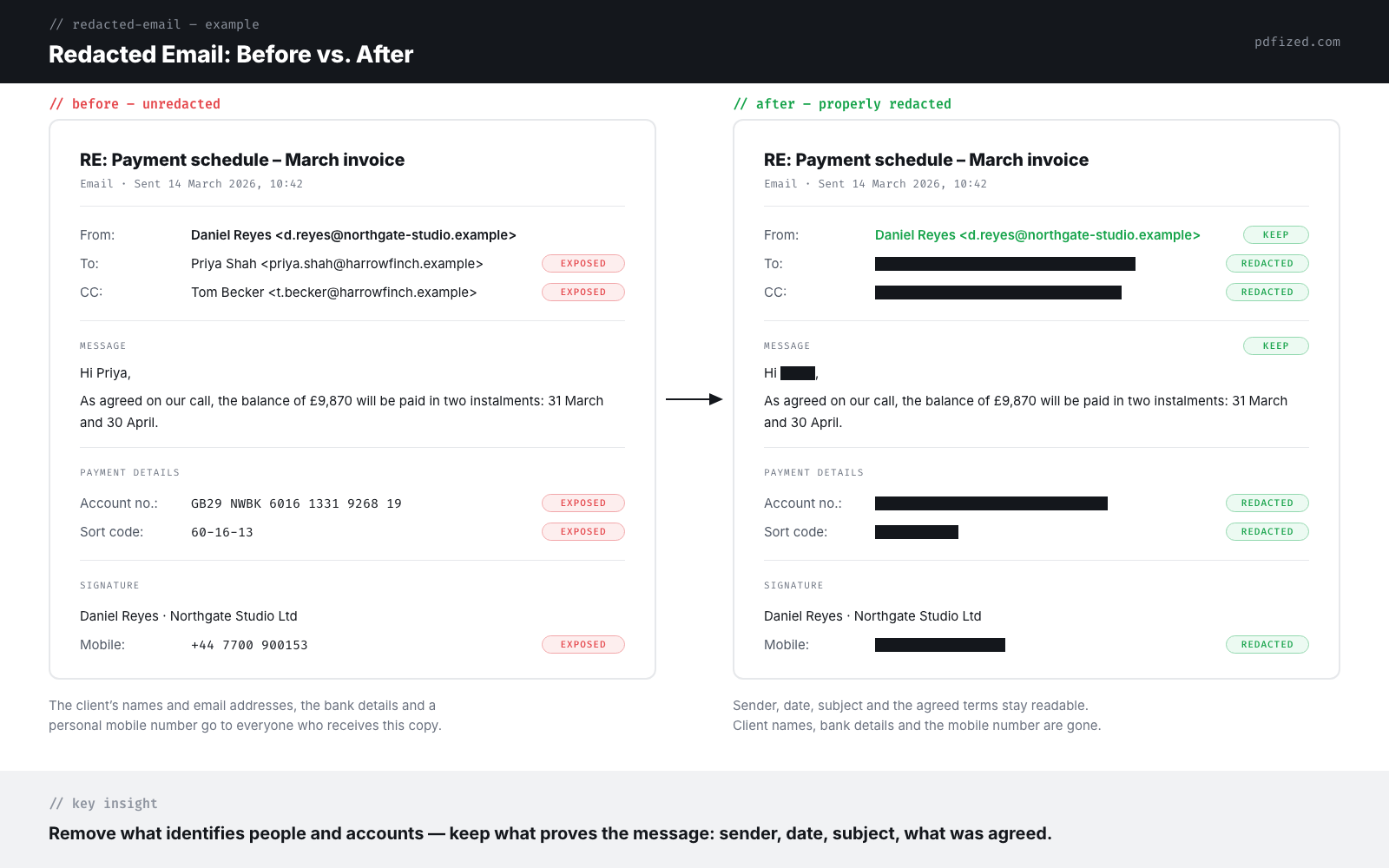
Now, take a look at what stays there. It's easy to tell who the sender is, when s/he did it, the subject, and what was agreed. They can see that a payment block existed. What is not available is the account number or/and identify the client. For a court, an auditor, or a landlord, that’s usually the whole job.
Need to redact an email?
Save it as a PDF, upload it to PDFized, and the sensitive details are found and removed permanently – free to start.
When You Need a Redacted Email
You may need to redact an email when someone needs this email but has no rights to see every detail in it. The usual situations:
| Situation | Hidden stuff | Reasons it gets hidden |
|---|---|---|
| Court exhibits and discovery | Privileged lines, personal identifiers | Privilege claims, FRCP 5.2 |
| Public records requests | Personal data of staff and citizens | FOIA exemptions, privacy laws |
| HR and regulator complaints | Names of uninvolved colleagues | Only the conduct matters |
| Sharing proof publicly | Addresses, phones, full headers | Posting a scam or harassment email |
| Work samples and testimonials | Client names, pricing | NDAs, client confidentiality |
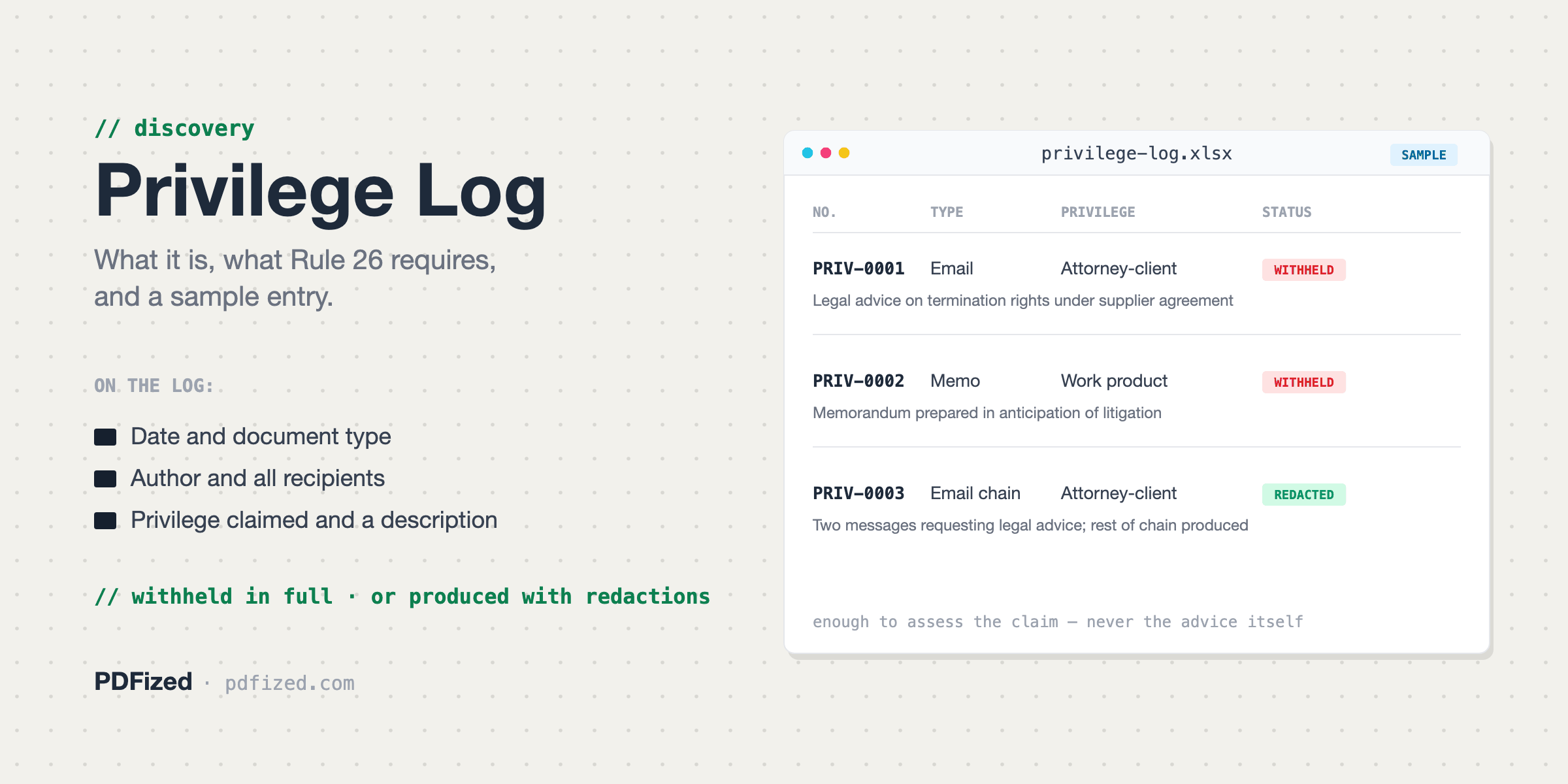
We can consider a legal scenario here. Email chains are the most common exhibit in modern litigation, and a chain is rarely privileged from top to bottom. Here's how everything usually ends: the chain is produced with the privileged messages redacted, and those redactions are recorded in a privilege log. Then goes this: an employee forwards proof of a promise made by a vendor. A freelancer shows a happy client’s email with the client’s identity removed. A tenant documents a landlord dispute for a housing authority.
What Should Be Redacted in an Email
If a person doesn't want her info to be shared, and the email includes that info, that's what you have to redact:
- Information about the person, such as home addresses, personal phone numbers, and many other PII here and there in the conversation.
- Financial details: from account numbers to IBANs and card digits.
- Other stuff: the CC list and names of third parties who have nothing to do with why you’re sharing the email.
- Signature blocks like direct lines and personal mobiles sit there in every single message of the thread.
- The quoted thread. It's what users tend to forget. Below your message hangs the entire history, often with more sensitive content than the message itself.
- Attachments that come with the letter. For them, separate redaction pass is needed.
- Hidden extras like the metadata of the exported file and the file name (“RE: Acme dispute.pdf” undoes a lot of careful work).
Elements That Can Be Seen
Even though you redact an email, it still should carry some message and even prove something, so stuff like the sender, the recipient, the date, the subject, the adequate part of the body are must-haves. An email with nine-tenths of its lines blacked out convinces nobody.
Doing Emails Redaction in Outlook
Outlook has no redact feature. You just type “[redacted]” over the text before sending. That helps for a message you haven't sent yet. For an existing email, the working method is export first, redact second:
- Save the email as a PDF. Open the message and go to File => Print. On Windows, pick Microsoft Print to PDF; on a Mac or in Outlook on the web, use Save as PDF in the print dialog.
- Check what landed in the PDF. The export includes the header block and the quoted thread.
- Highlight sensitive stuff on every page.
- Redact all stuff permanently. Use software that deletes the underlying text. Recoloring text black in the body or drawing shapes over it is not redaction – black text on a black background is still text, and our guide on blacking out text in a PDF shows exactly why.
- Take care of what is not seen. Remove the metadata from the PDF and rename the file if the name reveals the case or the client.
- Search the whole file for a redacted number. Try to copy text from under a black bar. You failed if anything comes out.
Gmail: The Peculiarities of Email Redaction
No built-in redaction. Confidential mode removes nothing. It means the user have to:
- Open the email, click the three-dot menu, and choose Print.
- For a thread, use “Print all” so the whole conversation lands in one file.
- In the print dialog, set the destination to Save as PDF.
- Redact the PDF exactly as in steps 3–6 for Outlook, or follow the walkthrough below.
The export-then-redact logic is universal, by the way. It works for Apple Mail, Thunderbird, Proton Mail – any client that can print. Our guide on redacting a PDF walks through that stage in full detail.
How to Redact an Email with PDFized
The same workflow, compressed to a couple of minutes:
- Export the email to PDF from Outlook, Gmail, or any other client that can print.
- Upload the file to PDFized. Our free PII redaction software runs in the browser, so there’s nothing to install.
- Review what the detection found. Names, account numbers, addresses and contact details are flagged automatically, including in scanned correspondence after OCR. Add your own marks for anything case-specific – a project name, a confidential figure.
- Apply. The marked text is removed permanently, not covered, and the file’s metadata is cleaned along with it.
- Download and check. Search the copy for a removed number, try to copy text from under a bar to ensure nothing comes out.
When you share the result, attach it to a fresh message. Don’t forward the original with the redacted version on top.
Top Errors That Can Expose Hidden Info
The mistakes are usually all the same here and there:
- You just put black boxes over live text. The bar looks like it's solid, but the truth is the text underneath copies out in two clicks. We discussed some common document redaction mistakes, and hopefully that'll help.
- You redact the message and forget the thread. The quoted history below repeats the same account number three more times.
- You choose black color to highlight the pieces of text in black inside the email. Select it, and it reads perfectly. Screen readers read it out loud, too.
- You leave the signature on every page. Long threads repeat the signature block over and over. If there's just a single missed copy, that is just enough.
- You don't change file name and metadata. The PDF’s properties can carry the author and the original subject line.
- You use an open channel to send a clean copy. A properly redacted email forwarded carelessly is still a leak; see how to send secure PDF files.
// faq
FAQ
It's a shared copy of an email but all the sensitive pieces of info in it are permanently removed. All the stuff like account numbers, personal data, third-party names are gone. At the same time, things like the sender, date, subject and the point of the message stay readable. The original email is unchanged.
You can't do it inside the email client. First, save the email as a PDF. The next step is redacting that copy permanently, and sharing the PDF. Outlook and Gmail have no redaction features of their own.
Outlook has no redact button, so you can't do it inside the app. Save the email as a PDF first (File => Print), then remove the private details from that PDF with a redaction tool. Send the PDF, not the original email.
Not directly. Gmail’s confidential mode only restricts forwarding and printing – the text stays readable. To redact, print the email to PDF and remove the sensitive content there.
Export the whole thread to one PDF, then redact every occurrence of the sensitive data – threads repeat the same details in the quoted history and in each signature block. Verify with a text search before sharing.
If the “redaction” was a black shape drawn over the text, yes – the text is still in the file. If the text was permanently removed with a proper redaction workflow and the file was verified, there’s nothing left to recover.